Badge Issuance
The Badge Issuance section lets you issue digital badges to holders using your badge templates.
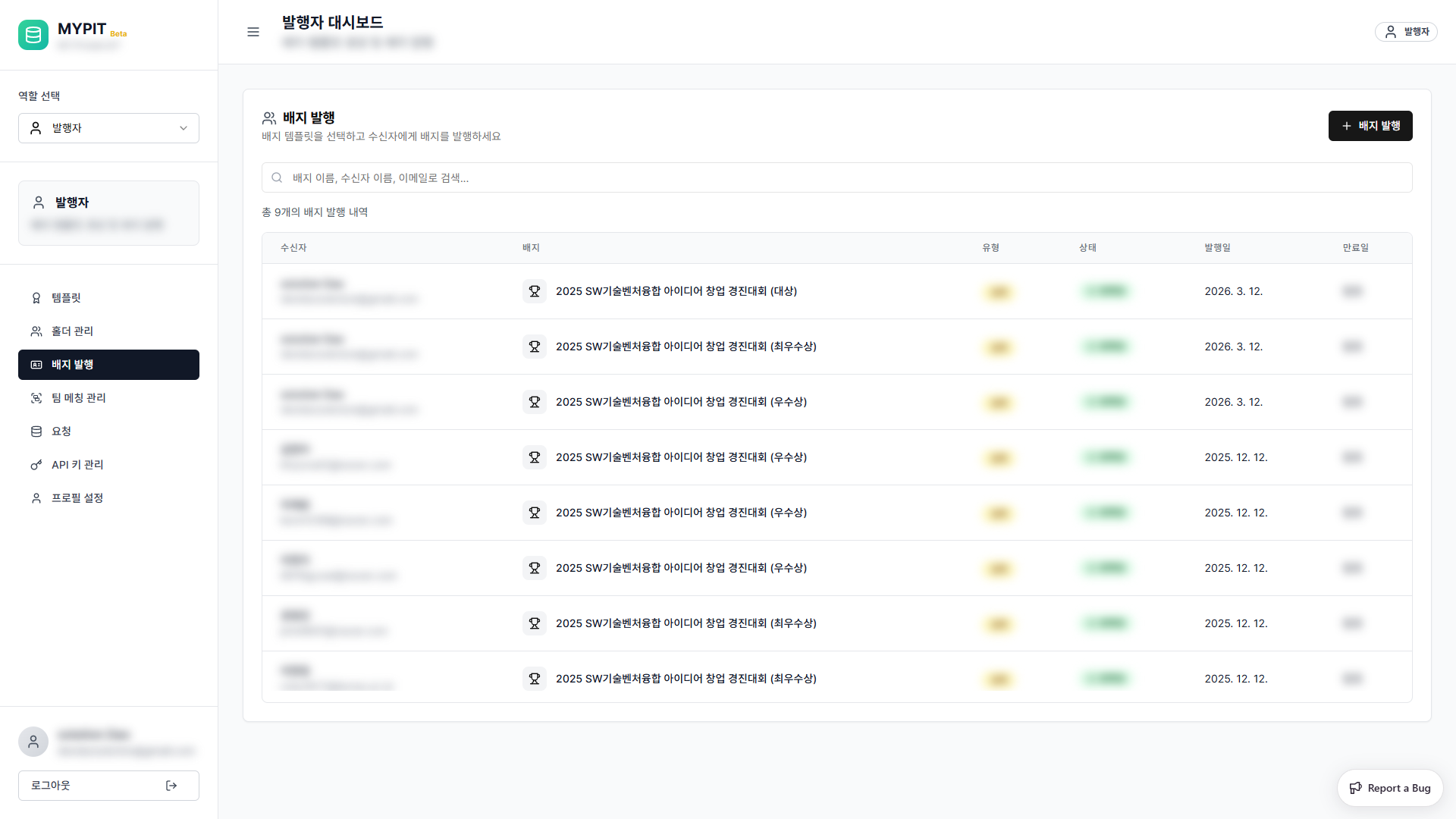
Issuance History
The table shows all badge issuances with:
| Column | Description |
|---|---|
| 수신자 | Recipient name and email |
| 배지 | Badge template name and image |
| 유형 | Badge type |
| 상태 | Status — 발행 중 (Processing) or 발행됨 (Issued) |
| 발행일 | Date the badge was issued |
| 만료일 | Expiry date (or 없음 if no expiry) |
Use the search box to filter by badge name, recipient name, or email.
Issuing a New Badge
Click + 배지 발행 (Issue Badge) in the top-right corner.
The 새 배지 발행 dialog opens in three steps:
Step 1 — Select a Template
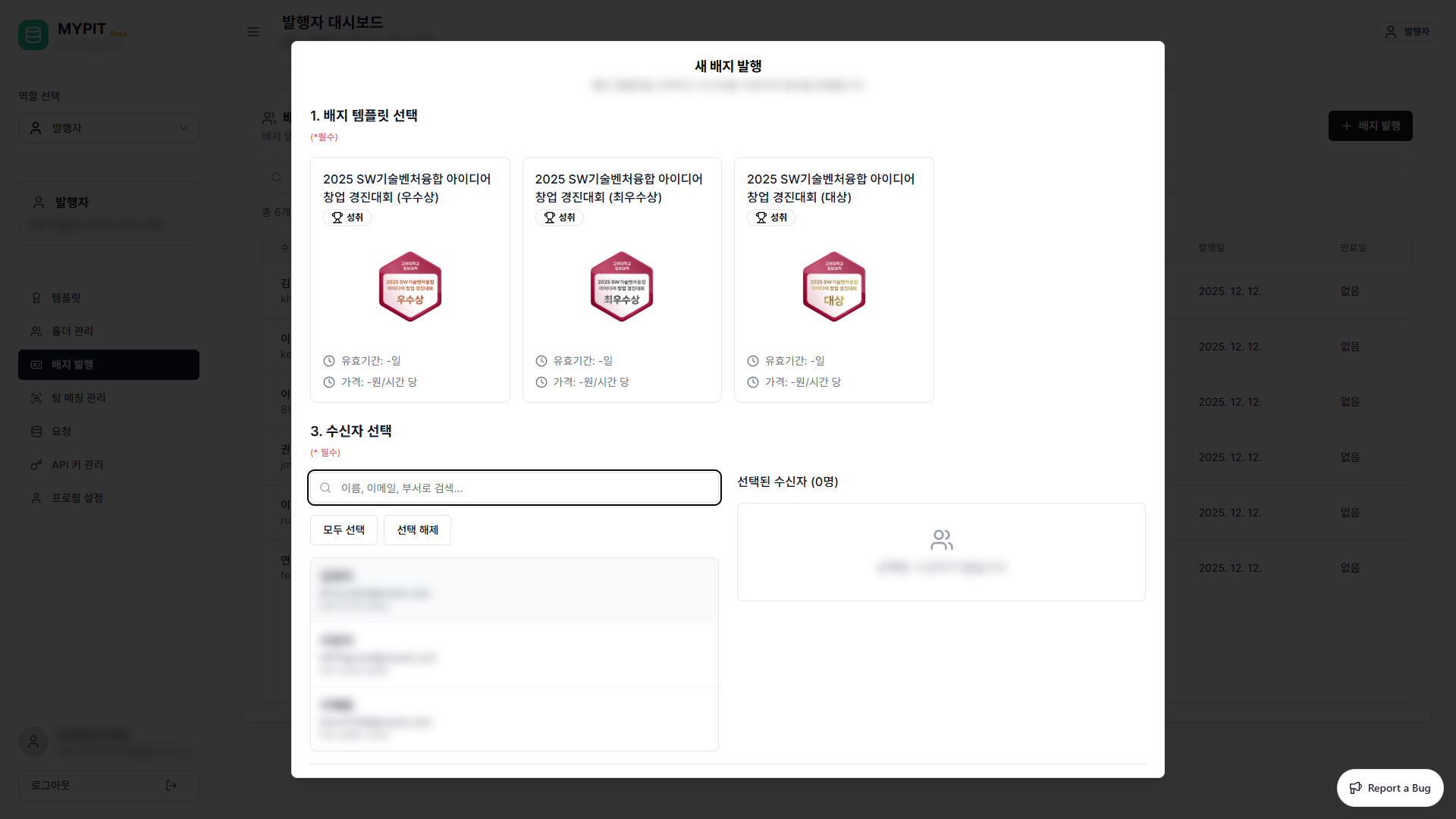
Click on a badge template card to select it. The selected template will be highlighted.
Step 2 — Enter Badge Data (Optional)
Add custom data fields to embed in the badge credential:
| Field | Description |
|---|---|
| 필드 이름 | Name of the custom field (e.g. 점수, 면허번호) |
| 값 | Value for the field |
| 민감한 정보로 표시 | Mark the field as sensitive (hidden by default in shared views) |
Click the + button to add more fields.
TIP
At least one badge data field is required. Add a meaningful field such as 수상 등급 or 점수 to embed verifiable information in the credential.
Step 3 — Select Recipients
Search for holders by name, email, or department. Click a holder row to add them to the 선택된 수신자 list. Use 모두 선택 to select all holders.
Click 배지 발행 (N명) to issue the badge to all selected recipients. A confirmation toast will appear, and the badge will appear in the issuance list with 발행 중 status while being processed.