Shared Collections
The Shared Collections section lets you group your badges into a collection and share it publicly via a link or QR code.
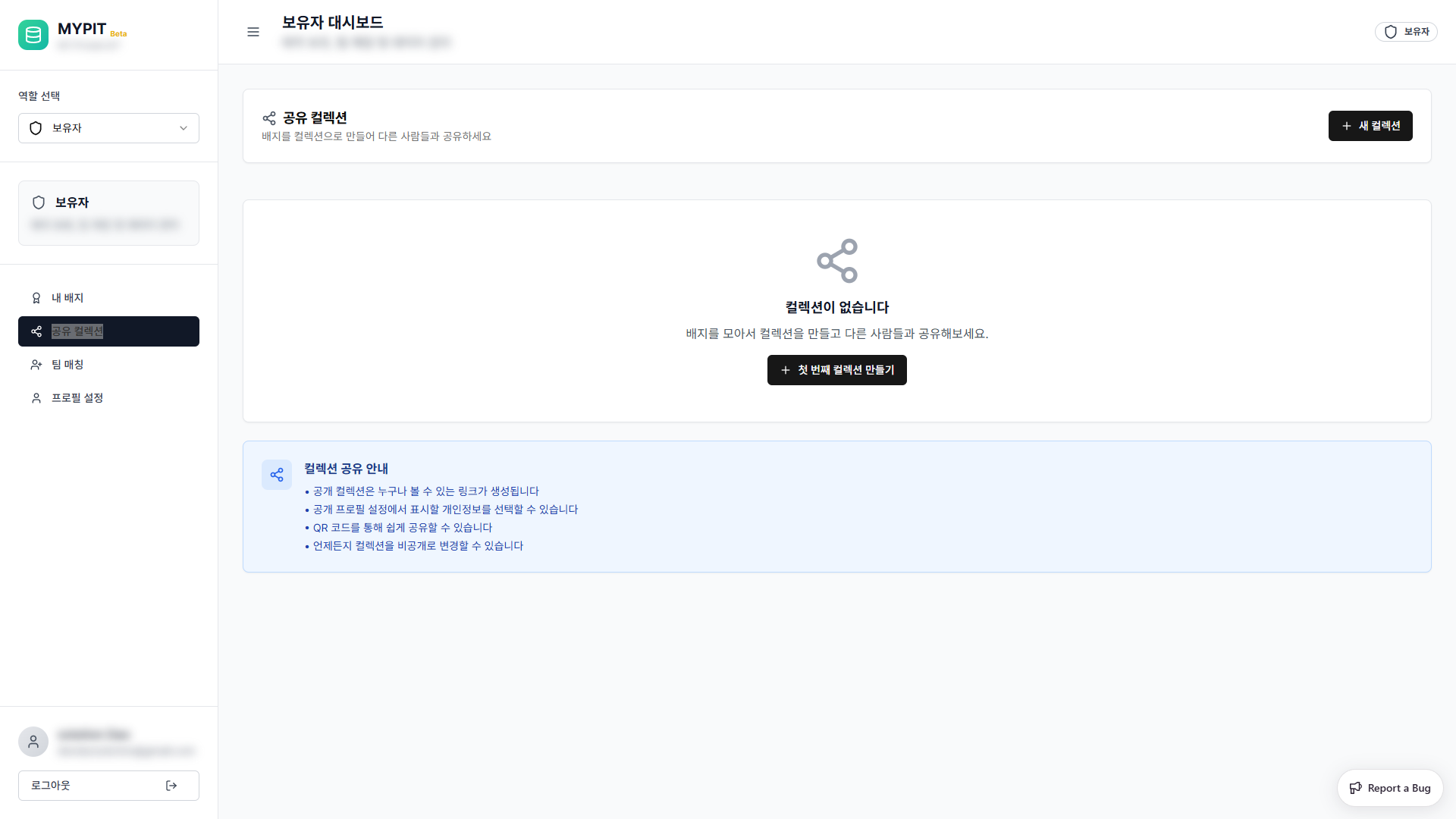
Creating a Collection
Click + 새 컬렉션 (New Collection) in the top-right corner (or + 첫 번째 컬렉션 만들기 if no collections exist yet).
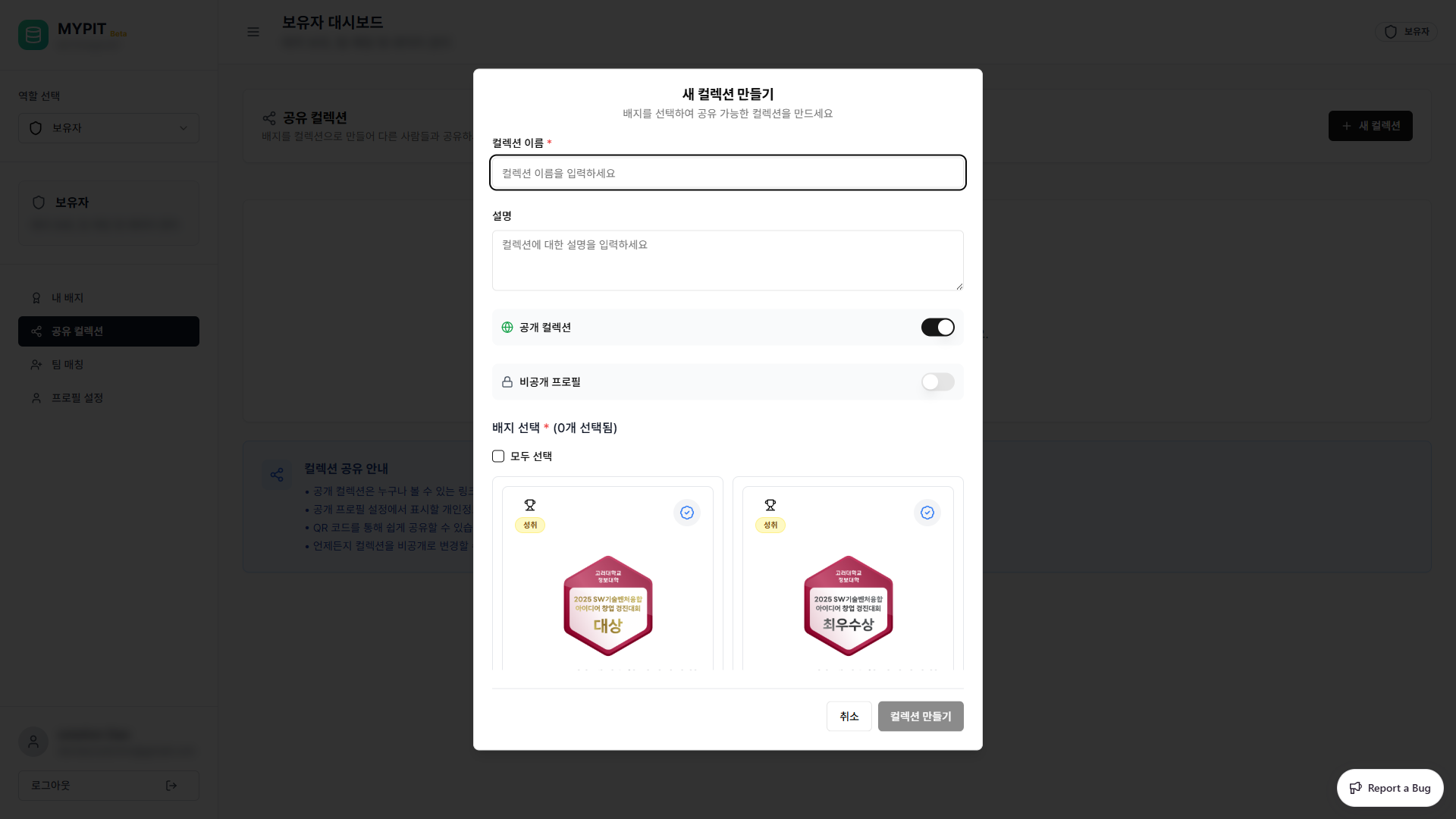
Fill in the form:
| Field | Required | Description |
|---|---|---|
| 컬렉션 이름 | Yes | Name for the collection |
| 설명 | No | Short description |
| 공개 컬렉션 | — | Toggle on to make it publicly accessible (default: on) |
| 비공개 프로필 | — | Toggle on to hide your personal info from public view |
| 배지 선택 | Yes | Check the badges to include (use 모두 선택 to select all) |
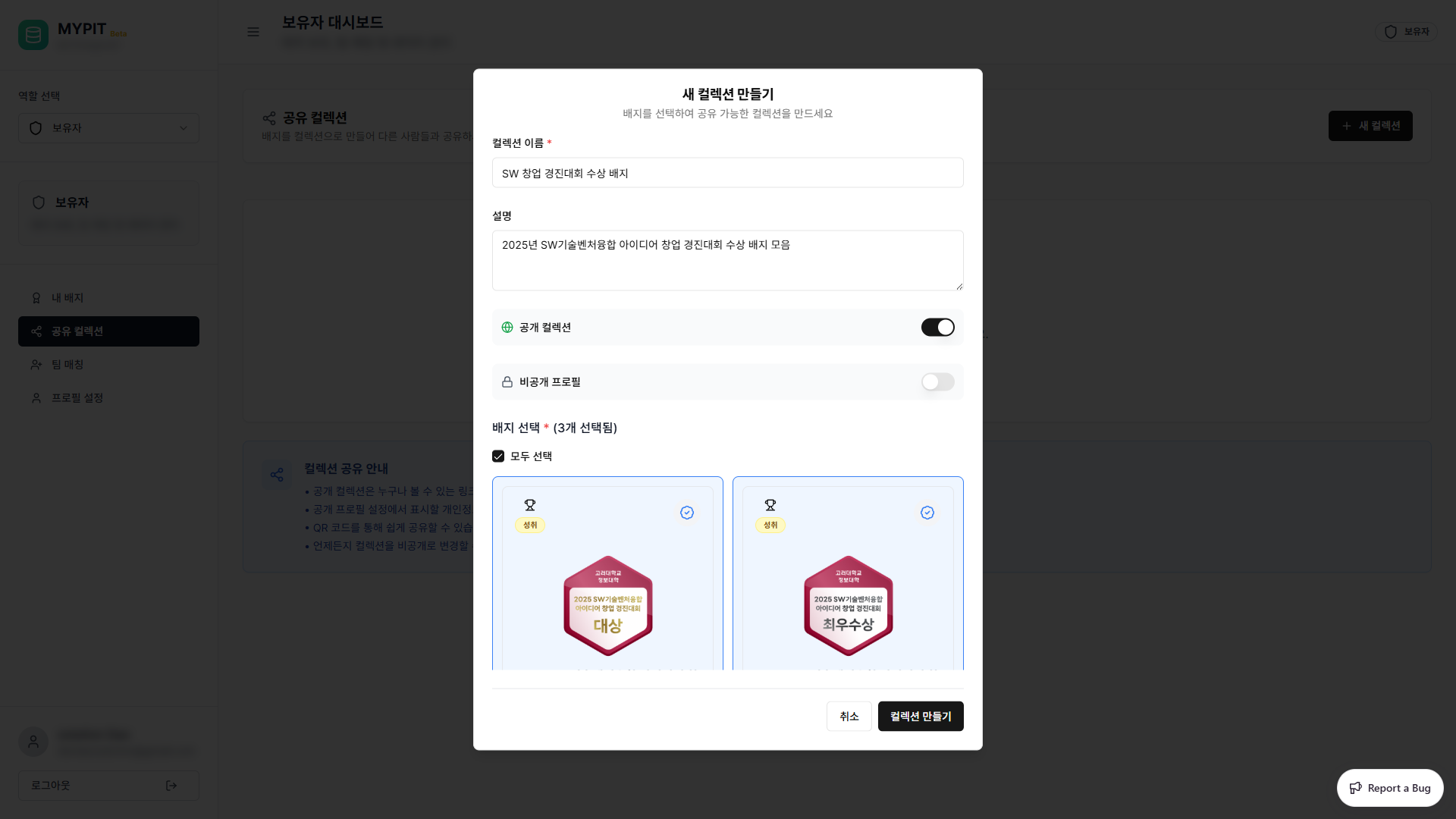
Click 컬렉션 만들기 to create the collection.
Collection Card
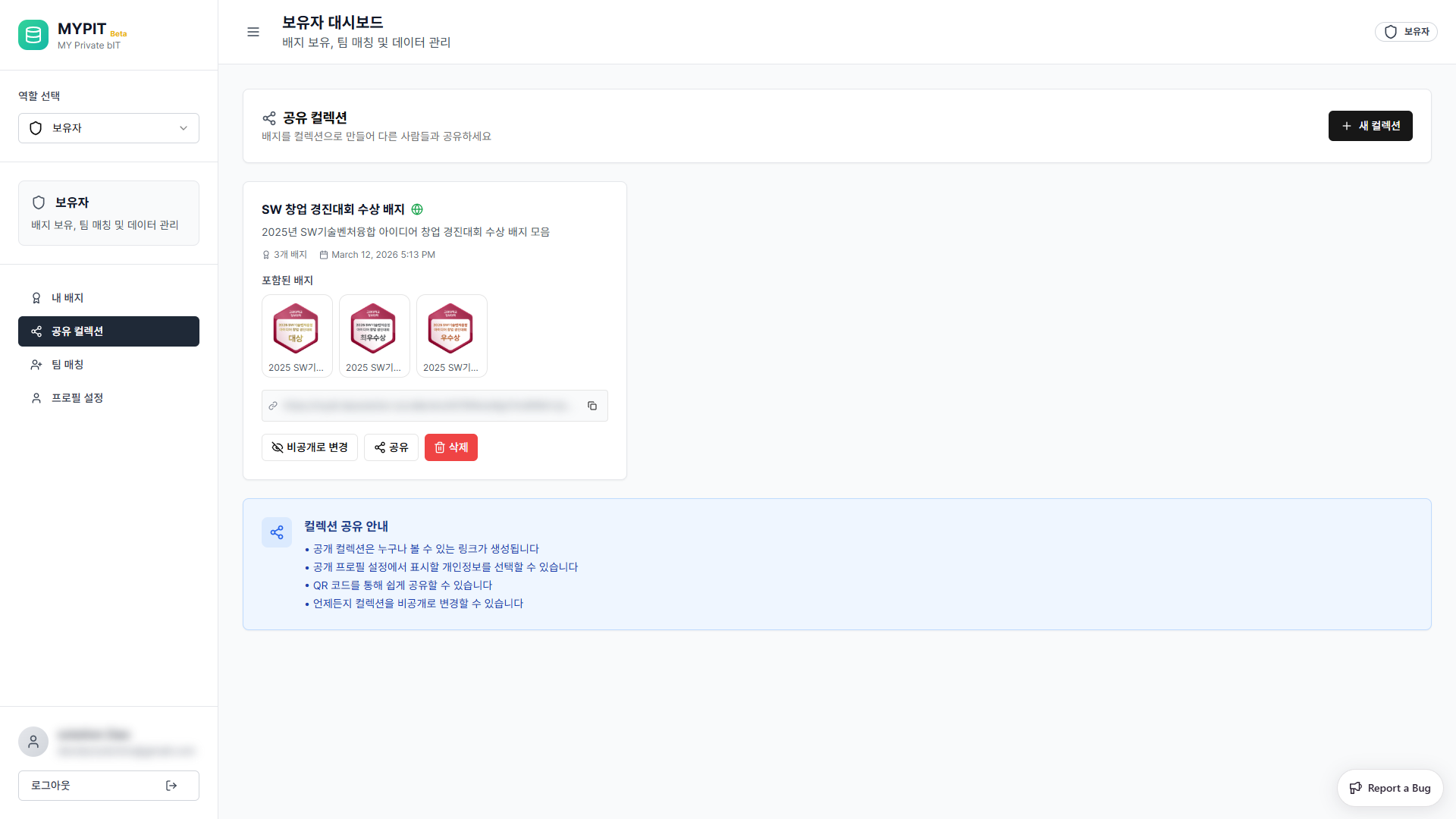
After creation, the collection appears as a card showing:
- Collection name and public indicator
- Description
- Badge count and creation date
- Included badge thumbnails
- Collection URL (shareable link)
- Action buttons: 비공개로 변경, 공유, 삭제
Sharing a Collection
Click 공유 on the collection card to open the share dialog.
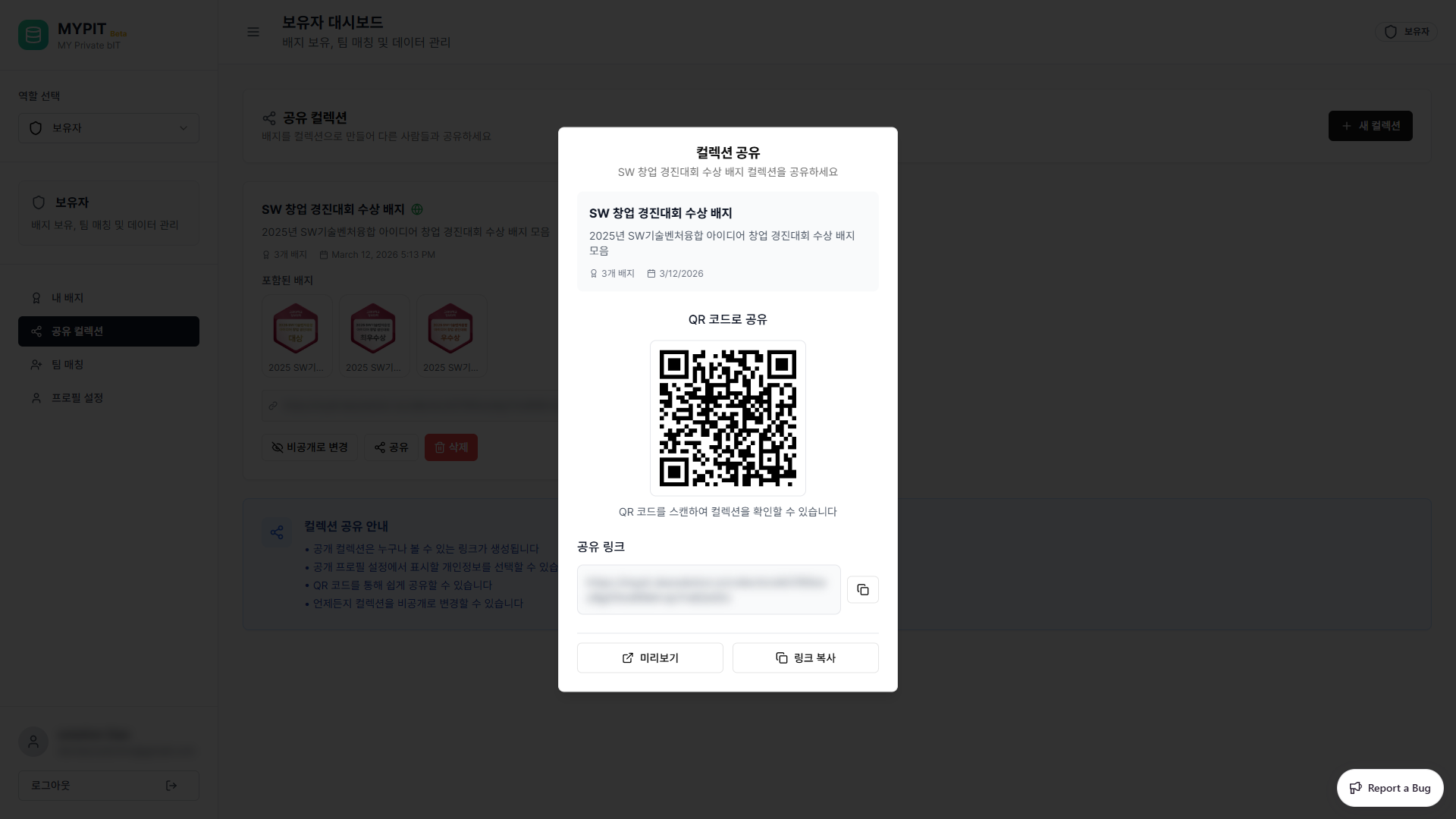
The dialog provides:
- QR code — scan to open the collection
- Share link — copy-ready public URL
- 미리보기 — opens the public collection page in a new tab
- 링크 복사 — copies the link to clipboard
Privacy Controls
| Setting | Behavior |
|---|---|
| 공개 컬렉션 (on) | Anyone with the link can view the collection |
| 비공개 컬렉션 | Only you can see it — click 비공개로 변경 to switch |
| 비공개 프로필 | Hides your personal information from public viewers |
INFO
In Profile Settings you can control which personal information is displayed alongside your public collections.
Collection Sharing Tips
- Public collections generate a link anyone can open without logging in
- You can share via QR code for in-person scenarios
- Toggle to private at any time using 비공개로 변경
→ Next: Team Matching — Joining a Class