Team Matching Management
The Team Matching Management section lets you create classes, share enrollment links, and manage student teams.
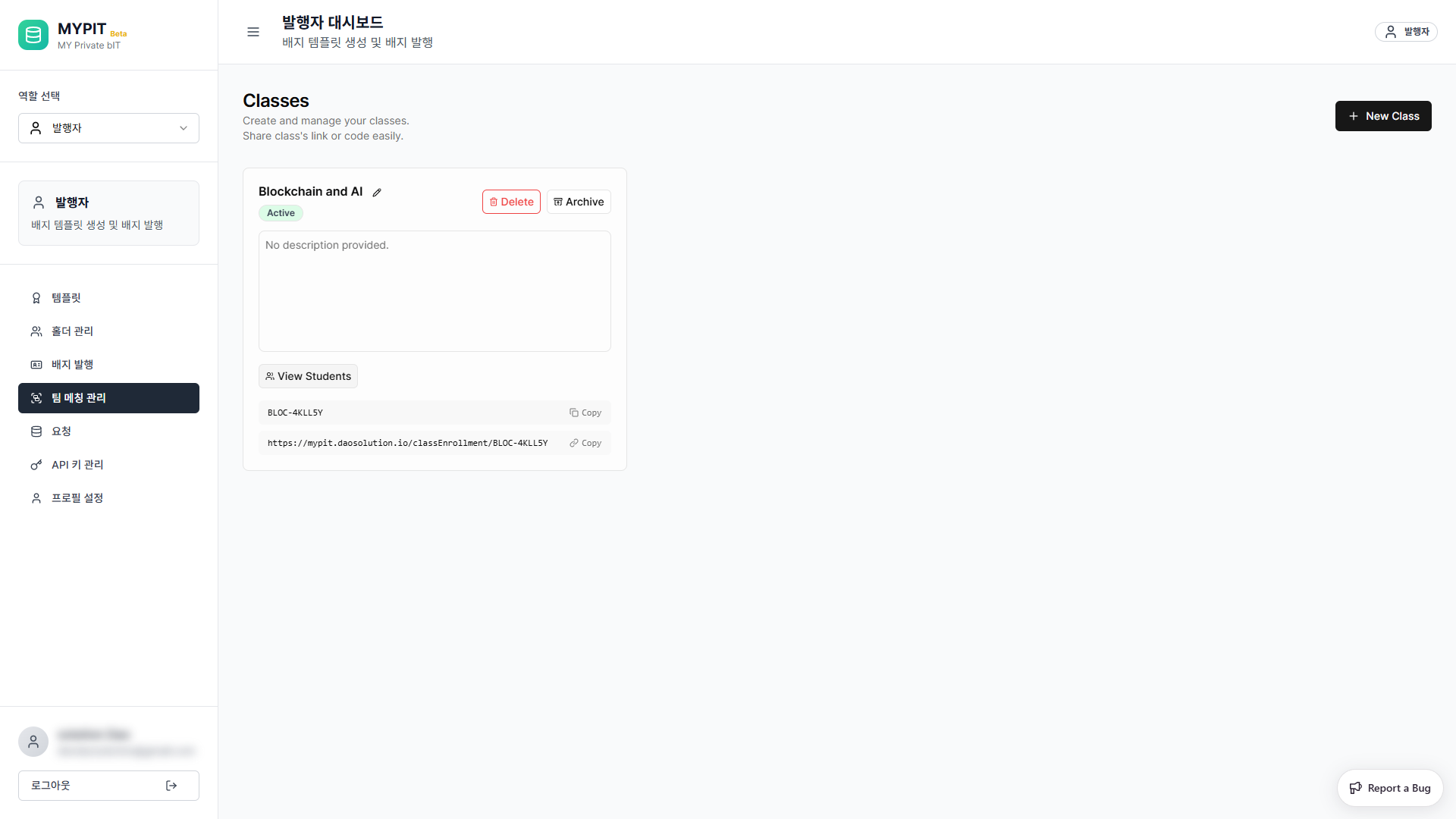
Classes Overview
Each class card shows:
- Class name and status (Active / Archived)
- View Students button to see enrolled students and teams
- Delete and Archive buttons
- A unique class code (e.g.
BLOC-4KLL5Y) and enrollment URL
Use the Copy buttons next to the code or URL to share them with students.
Creating a New Class
Click + New Class in the top-right corner.
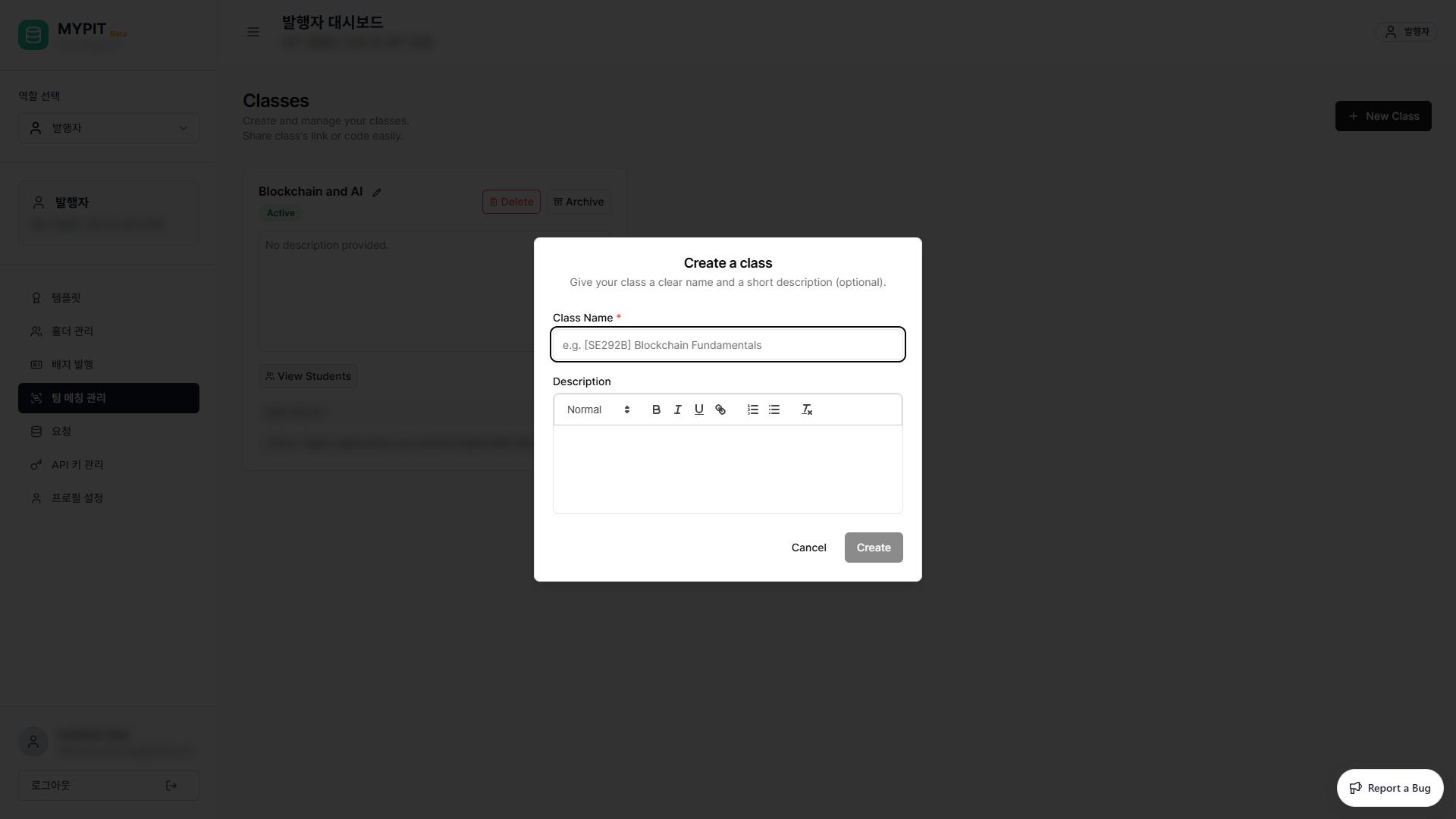
| Field | Required | Description |
|---|---|---|
| Class Name | Yes | A clear name for the class (e.g. [SE292B] Blockchain Fundamentals) |
| Description | No | A short description of the class (rich text editor) |
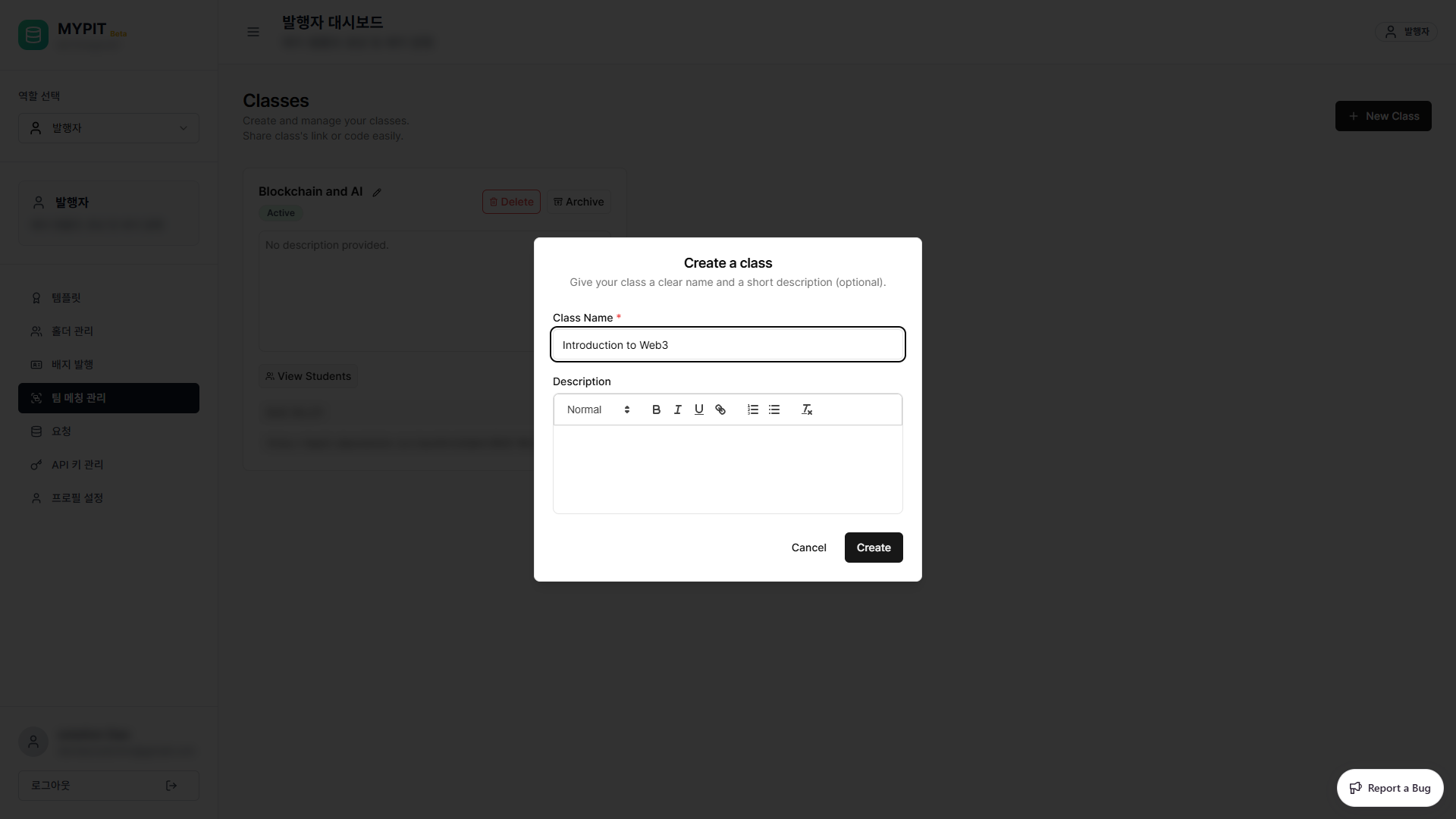
Click Create to create the class. The new class appears immediately on the page with its unique code and enrollment URL.
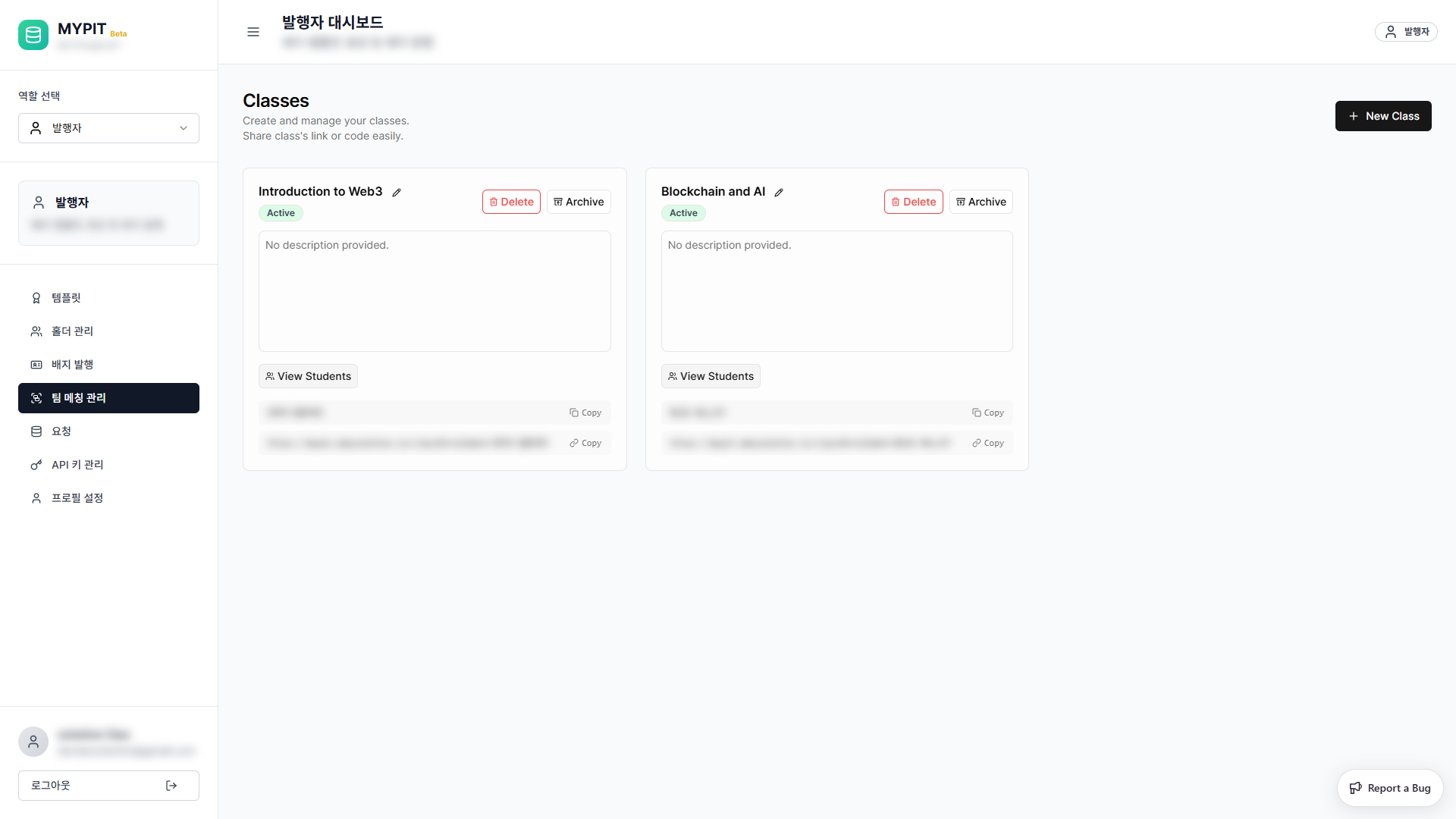
Sharing a Class
Each class has two shareable items:
| Item | How to share |
|---|---|
| Class Code | Students enter this code in the Holder dashboard to join |
| Enrollment URL | Direct link — students click to enroll instantly |
Click Copy next to either item to copy it to your clipboard.
Viewing Students and Teams
Click View Students on a class card.
Students List
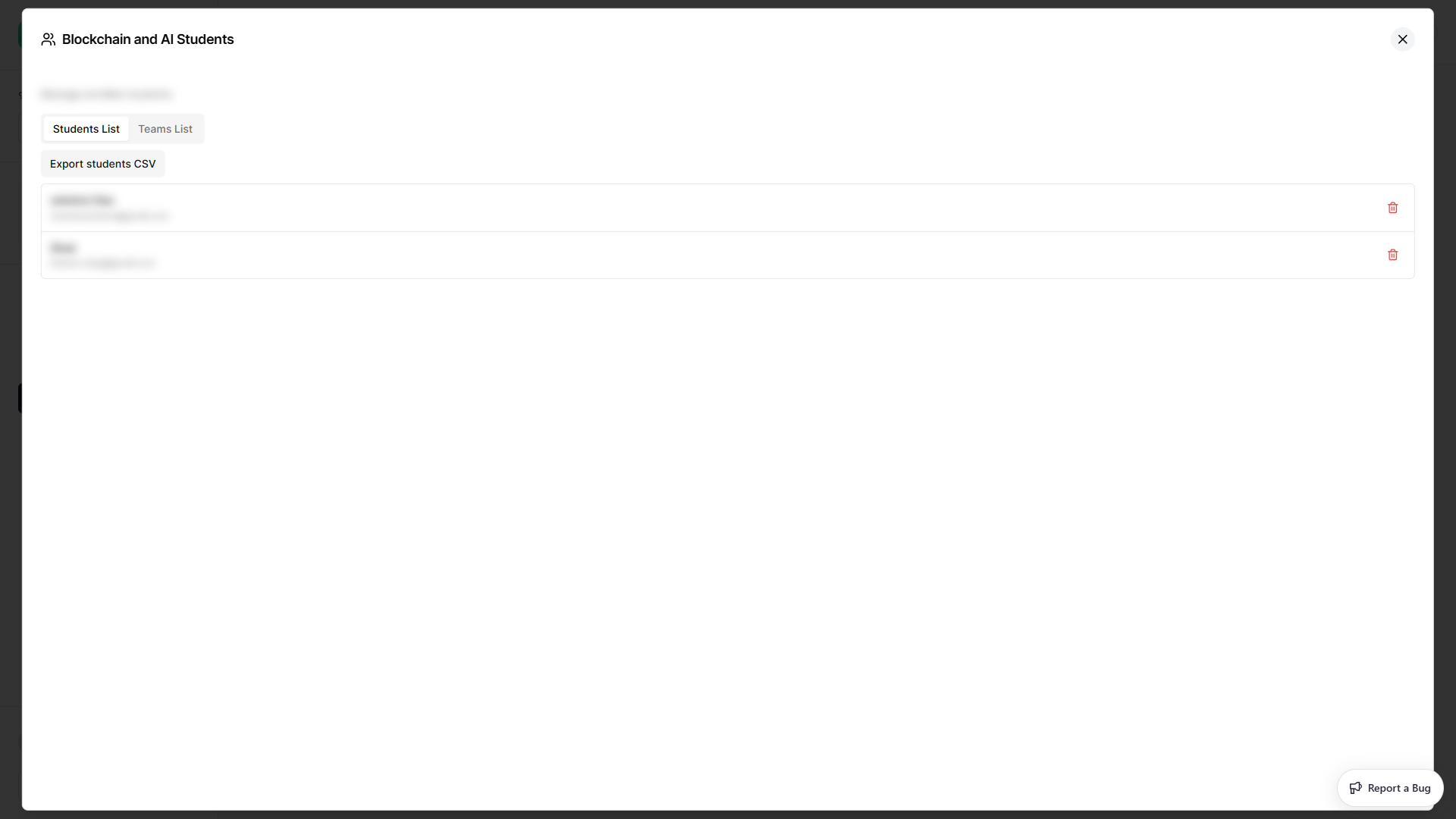
Shows all enrolled students. Click the delete icon to remove a student from the class. Use Export students CSV to download the roster.
Teams List
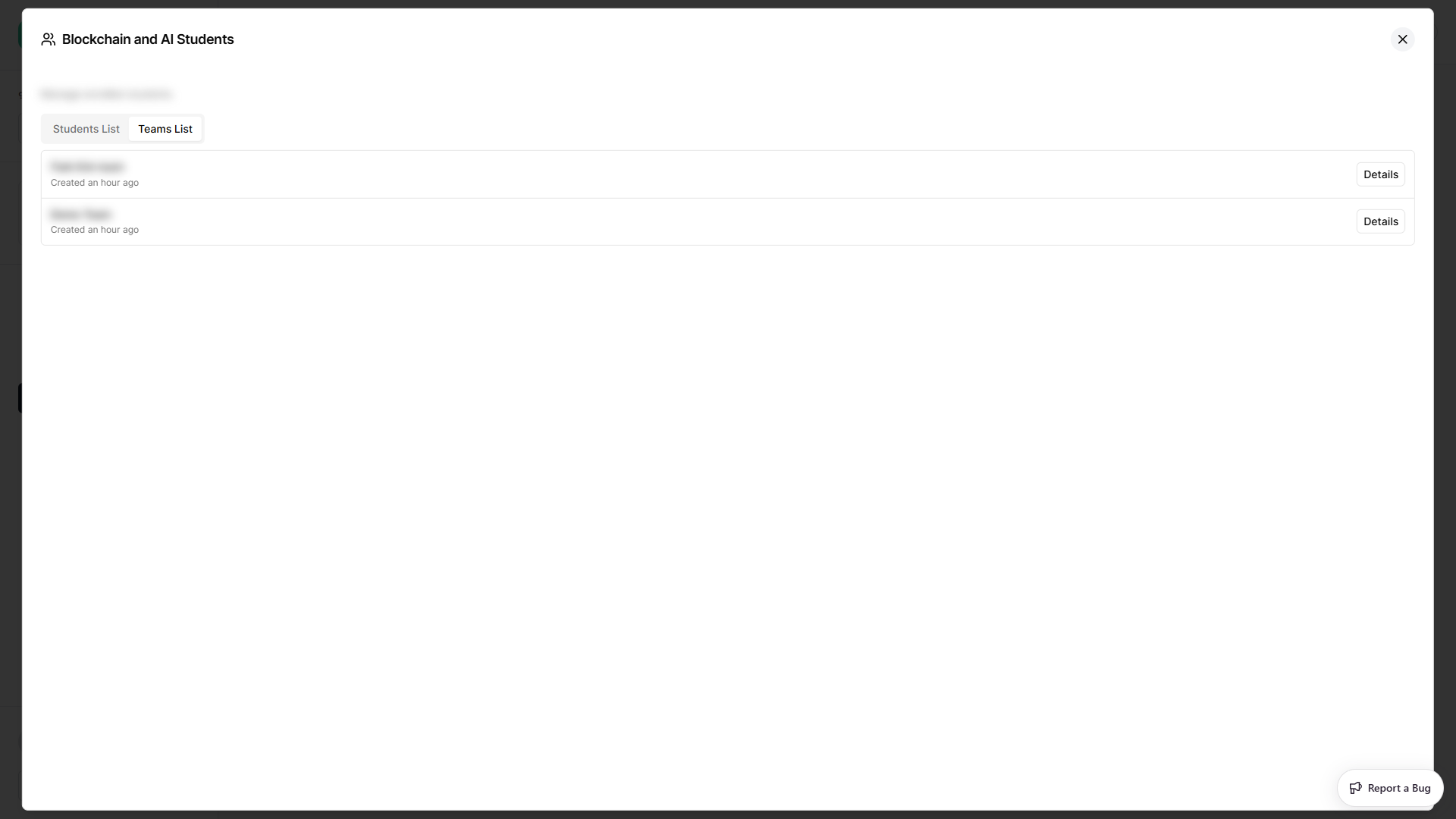
Shows all teams formed within the class. Click Details to view a team's members and activity.
Archiving and Deleting a Class
- Archive — Closes enrollment but keeps the class data for reference.
- Delete — Permanently removes the class and all its data.